
Locating a file within a shared folder involves using the tools provided by the storage platform to find specific content among items accessible by multiple users. Shared folders exist on various platforms like cloud storage services (Google Drive, Dropbox) or corporate networks, and files are located through browsing the folder structure, using search functions, or sorting/filtering options. Successfully finding a file depends on knowing where it was placed within the shared space and having the necessary access permissions.
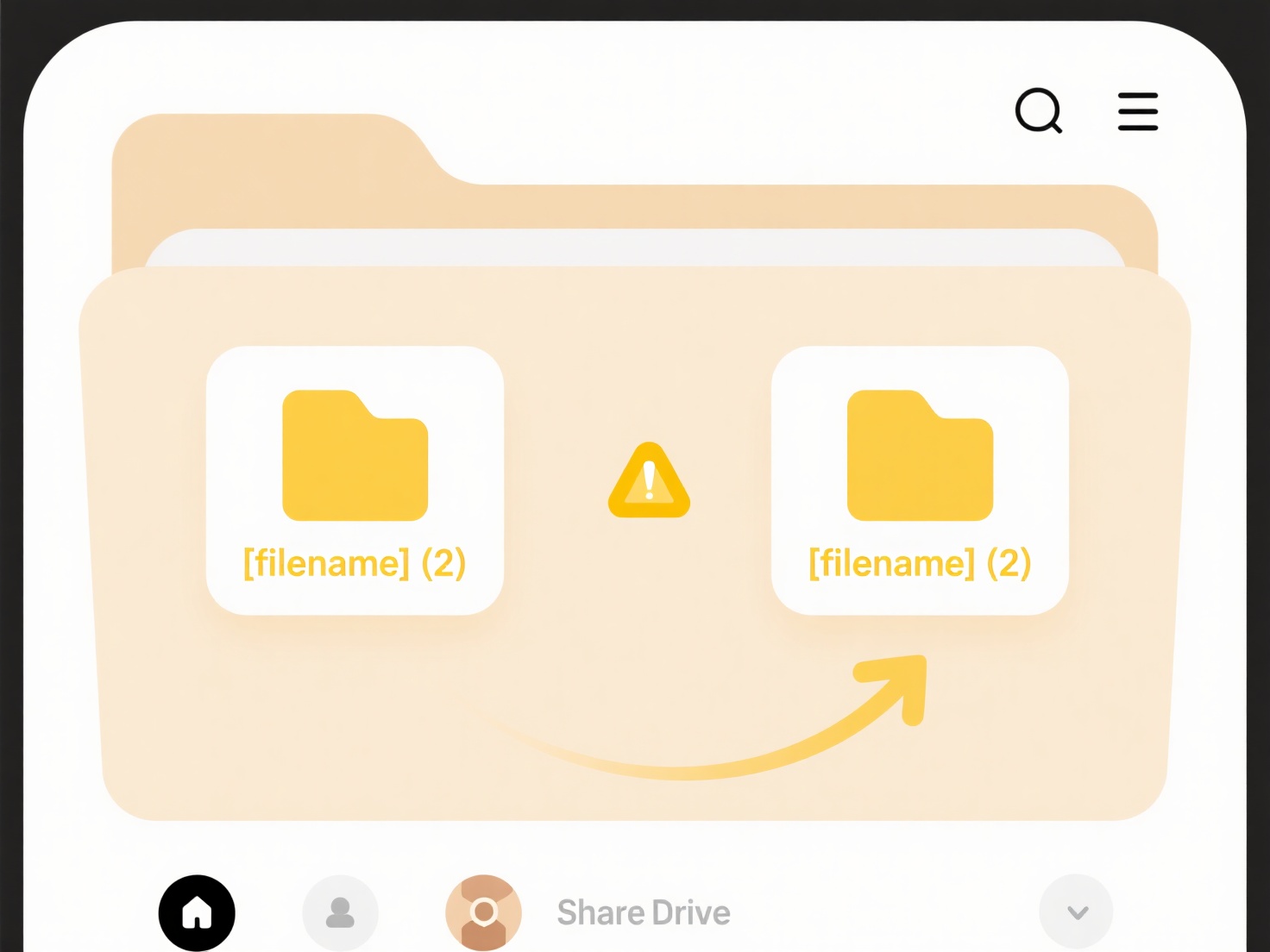
Typically, you start by navigating to the shared folder itself using your platform's interface. Once inside, you can manually browse through sub-folders or employ the platform's search bar. For example, in Google Drive, you can open the shared folder in your 'Shared with me' section and type a filename or keyword into the top search bar, making sure to scope results to "this folder." On a company network drive (like on Windows File Explorer), navigating to the specific shared drive letter, opening the relevant sub-folder, and using the search box in the top-right corner targets that location.
The main advantage is centralized access and collaboration, but finding files relies heavily on user practices like consistent naming and logical folder organization. Limitations arise if the file has an unclear name, is deeply nested, or if the platform's search isn't robust. Future AI improvements like content-based search (finding text inside files or recognizing images) could enhance location. Consistent naming and organizing conventions within the team significantly improve file findability and collaboration efficiency.
How do I locate a file uploaded to a shared folder?
Locating a file within a shared folder involves using the tools provided by the storage platform to find specific content among items accessible by multiple users. Shared folders exist on various platforms like cloud storage services (Google Drive, Dropbox) or corporate networks, and files are located through browsing the folder structure, using search functions, or sorting/filtering options. Successfully finding a file depends on knowing where it was placed within the shared space and having the necessary access permissions.
Typically, you start by navigating to the shared folder itself using your platform's interface. Once inside, you can manually browse through sub-folders or employ the platform's search bar. For example, in Google Drive, you can open the shared folder in your 'Shared with me' section and type a filename or keyword into the top search bar, making sure to scope results to "this folder." On a company network drive (like on Windows File Explorer), navigating to the specific shared drive letter, opening the relevant sub-folder, and using the search box in the top-right corner targets that location.
The main advantage is centralized access and collaboration, but finding files relies heavily on user practices like consistent naming and logical folder organization. Limitations arise if the file has an unclear name, is deeply nested, or if the platform's search isn't robust. Future AI improvements like content-based search (finding text inside files or recognizing images) could enhance location. Consistent naming and organizing conventions within the team significantly improve file findability and collaboration efficiency.
Related Recommendations
Quick Article Links
What’s the difference between .jpeg and .jpg?
JPEG and JPG are file extensions for the same image format: the JPEG compression standard developed by the Joint Photogr...
What are the most efficient ways to batch rename files?
What are the most efficient ways to batch rename files? Efficient batch renaming involves applying consistent naming r...
How do I save files on my phone?
Saving files on your phone involves storing digital content, like photos, documents, music, or videos, onto the device's...